
There is nothing more frustrating than losing a ranked match because your thumbstick drifted at the worst possible moment, or realizing mid-session that one of your shoulder buttons is only registering half your inputs. Most gamers simply replace their controller and move on, spending anywhere from $60 to $90 on new hardware without ever confirming what actually went wrong.
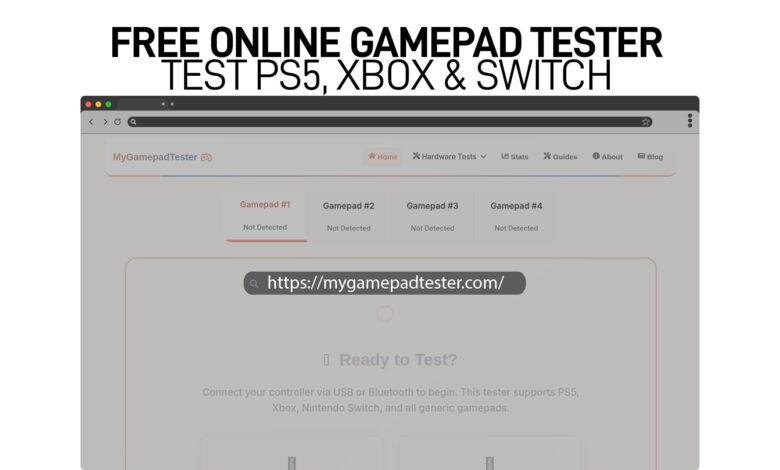
That is where MyGamepadTester changes the game entirely. It is a completely free, browser-based controller diagnostic platform that works with PS5, Xbox Series X|S, Xbox One, Nintendo Switch, and virtually any generic PC gamepad. There is nothing to download, no account to create, and no drivers to install. You simply connect your controller, press any button to wake up the browser Gamepad API, and within seconds you have access to one of the most comprehensive hardware testing suites available to consumers — all from a single website.
Built on the Web Gamepad API standard natively supported by Chrome and Edge, MyGamepadTester pulls live, frame-perfect data directly from your hardware. It visualizes every button press, axis movement, trigger pull, and vibration output in real time. Whether you are a casual gamer trying to decide if your controller needs replacing, a competitive player chasing every millisecond of performance, or a repair technician diagnosing hardware before a mod job, this platform has the tools to give you definitive answers fast.
This guide covers every feature available on the site, what each tool does, who it is designed for, and how to get the most out of each test.
Mouse Test — Verify Clicks, Movement, and Polling Rate in Real Time
For PC gamers who use both a controller and a mouse, having a reliable way to confirm that your mouse is functioning correctly is just as important as testing your gamepad. The mouse test tool on MyGamepadTester provides a clean, instant diagnostic for your mouse’s physical buttons, scroll wheel, DPI tracking, and movement accuracy — all without leaving the browser.
This tool is especially useful when you suspect a mouse button is double-clicking unintentionally, a common hardware failure that plagues gaming mice after extended use. Simply connect and click each button to see how the tool registers every input. The movement tracker visualizes cursor path data so you can spot inconsistencies or jitter in your sensor. For anyone who switches between controller and mouse during gameplay, or who builds gaming setups that use both input types, the mouse test provides a quick sanity check that requires zero technical knowledge to interpret. It is the kind of utility that should be bookmarked alongside any hardware troubleshooting workflow.
Keyboard Test — Confirm Every Key Registers Without Ghost Inputs
Switch and PC gamers who also rely on a keyboard for navigation, chat, or hybrid gaming setups will appreciate the dedicated keyboard test tool. This feature maps every key press visually on screen, allowing you to immediately confirm whether a key is registering correctly, failing to respond, or producing ghost inputs where unintended keys trigger alongside your actual press.
Ghost inputs and key rollover limitations are hardware problems that many users never identify because they assume the issue is a game bug or software conflict. The keyboard tester eliminates that guesswork entirely. You can test N-key rollover performance by pressing multiple keys simultaneously and watching which ones register, giving you a clear picture of your keyboard’s anti-ghosting capabilities. For competitive gamers where WASD responsiveness directly affects performance, this tool can reveal whether hardware limitations are costing you reaction time. It is also an excellent tool to run before and after cleaning a mechanical keyboard to confirm that no switches were damaged during maintenance.
Deadzone Test — Map Your Controller’s Analog Dead Zones Precisely
Every analog stick has a deadzone — a neutral zone near the center where small movements are intentionally ignored to prevent unwanted drift from registering as real input. The problem is that these zones vary between controllers, between the same model from different production runs, and they grow larger as the potentiometers inside your controller wear out over time. The deadzone test on MyGamepadTester gives you a precise, visual map of where your controller’s deadzones actually sit.
This matters more than most gamers realize. If your deadzone is too large, you lose fine-tuned control during slow, precise aiming or movement scenarios. If it is too small, your character may jitter or drift even when you are trying to hold a position. By running this test, you can see the raw axis values your controller is outputting before any game-level deadzone processing is applied. That raw data tells you whether your hardware is performing as intended or whether it is drifting into territory that will start affecting gameplay. This test is also invaluable for understanding why two controllers of the same model might feel noticeably different despite looking identical out of the box.
Trigger Test — Measure Trigger Travel, Analog Depth, and Response Curves
Triggers on modern controllers are not simple on/off switches — they are analog inputs that register every degree of pressure from a fully released position to a fully depressed one. This means the depth and consistency of your trigger pull directly affects everything from firing rates in shooters to acceleration sensitivity in racing games. The trigger test tool lets you visualize the entire analog range of both your left and right triggers in real time.
During the test, you can see the exact output value being reported at every point in the trigger’s travel. This reveals several important hardware characteristics: whether the trigger activates early or late relative to its physical position, whether the response curve is linear or stepped, and whether both triggers behave consistently with each other. For PS5 DualSense users, the adaptive trigger resistance features are particularly worth testing since uneven resistance or early deadzone issues can indicate that the adaptive trigger mechanism is beginning to wear. Competitive FPS and racing sim players who rely on analog trigger control will find this diagnostic essential for maintaining consistent hardware performance across long gaming sessions.
Input Lag Test — Measure the Actual Delay Between Input and Registration
Input lag is one of those performance metrics that competitive gamers obsess over but rarely have a reliable way to measure in real-world conditions. The input lag test on MyGamepadTester provides a browser-based diagnostic that measures the actual delay between when you press a button and when that input registers in software — giving you tangible data rather than manufacturer spec sheet claims.
This tool is particularly revealing when comparing wired versus wireless connections on the same controller. Bluetooth connections consistently add latency compared to a direct USB cable, and while most manufacturers quote figures under 10 milliseconds for their wireless implementations, real-world conditions involving USB hubs, interference, and system load can push that number significantly higher. By running the input lag test in both connection modes, you can quantify that difference for your specific setup. For esports players where a 20-millisecond difference in input response can be the margin between a registered hit and a miss, this data is genuinely actionable. It is also a useful tool when evaluating whether a wireless controller upgrade is worth the investment compared to your existing wired setup.
Button Test — Check Every Button Press, Combination, and Simultaneous Input
The button test is one of the most frequently used features on MyGamepadTester, and for good reason. It provides a complete, real-time visual map of every button on your controller — face buttons, bumpers, triggers, stick clicks, D-pad directions, the start and select equivalents, and platform-specific inputs like the DualSense touchpad click or the Xbox Share button. Every input lights up the moment it registers, making it immediately obvious if any button is failing, sticking, or producing inconsistent output.
This test is especially valuable for identifying buttons that only fail under certain conditions. Some controllers develop buttons that work fine under light pressure but miss inputs during fast, forceful presses — a problem that the real-time visualization makes instantly visible. You can also test simultaneous button combinations to check for any input conflicts, which matters for players who use complex button macros or who need reliable multi-button inputs for fighting game mechanics. Running a button test before purchasing a used controller is one of the best decisions any buyer can make, since it can reveal hidden hardware issues in under a minute that a physical inspection alone would never catch.
Stick Drift Test — Detect Early and Advanced Joystick Drift with Live Axis Data
Stick drift is the most common hardware failure affecting modern controllers, and it has cost gamers millions in unnecessary replacements and repairs that could have been avoided with better early diagnosis. The stick drift test on MyGamepadTester is one of the most detailed free diagnostic tools available, displaying live axis values from both analog sticks with enough precision to detect drift long before it becomes visible in gameplay.
The test works by displaying the raw output from your controller’s joystick potentiometers — the physical sensors inside the stick that report position to the console or PC. When you place the controller on a flat surface and release both sticks completely, the axis values should read at or very close to zero. If either axis consistently reads above 0.14, early drift is confirmed. Values above 0.25 indicate advanced drift that will actively move your character or camera in-game without any input from you. Catching drift at the early stage gives you options: cleaning the contacts with isopropyl alcohol can resolve mild cases entirely, while the calibration tools on the same platform can help you manage the issue until a repair is viable. This test is also the single best tool for building a warranty claim, since documented axis readings above threshold provide concrete evidence of hardware defects.
Joystick Calibration — Fine-Tune Dead Zones, Sensitivity, and Axis Alignment
Even a controller without stick drift can benefit from calibration. Manufacturing tolerances mean that factory default settings are rarely optimized for every individual unit, and over time normal wear shifts the baseline performance of your sticks away from ideal. The joystick calibration tool on MyGamepadTester gives you the ability to assess and fine-tune your stick’s deadzone thresholds, sensitivity curves, and axis alignment in a controlled, data-driven environment.
This feature is particularly useful after performing a physical repair such as replacing the joystick module on a DualSense or Switch Pro Controller. After any internal hardware change, running the calibration tool confirms that the replacement module is performing correctly and allows you to establish a new baseline for the stick’s at-rest values. It is also worth using when you move between different games that have their own internal sensitivity settings, since understanding your hardware’s raw output helps you make more informed choices about in-game deadzone and sensitivity adjustments. For controller modders and repair technicians, the calibration tool is a professional-grade resource that previously required dedicated hardware or expensive software to replicate.
Vibration Test — Confirm Both Haptic Motors Are Working at Full Strength
The haptic feedback system in a gaming controller is one of the first components to degrade with heavy use, and it is also one of the hardest to assess without the right tools. The vibration test on MyGamepadTester lets you activate the rumble motors in your controller directly from the browser, with options for single burst, continuous vibration, and variable intensity, giving you a complete picture of your haptic system’s current health.
During the test, you can feel immediately whether both motors — the large low-frequency rumble motor and the smaller high-frequency impact motor — are engaging with equal strength. A common early sign of motor failure is an asymmetric rumble where one side feels noticeably weaker or completely silent. The vibration test makes this comparison effortless. For PS5 DualSense users, the advanced haptic motors support a wider range of feedback intensities than older controllers, and this tool lets you verify that the full range is functioning correctly. Beyond diagnosing problems, the vibration test is also useful after cleaning or repairing a controller to confirm that no internal connections were accidentally disturbed during the process.
Joy-Con Tester — Dedicated Diagnostics for Nintendo Switch Controllers
Nintendo Switch Joy-Con controllers are uniquely prone to hardware issues, with stick drift being so widespread that it prompted class action lawsuits and extended warranty coverage in multiple regions. The dedicated Joy-Con tester on MyGamepadTester is purpose-built to address the specific diagnostic needs of Switch hardware, supporting both individual Joy-Con units and the Switch Pro Controller with full button and axis coverage.
The tool detects each Joy-Con separately, allowing you to test the left and right controllers independently while also evaluating them as a pair. The live axis display is calibrated to the Joy-Con’s specific stick range and sensitivity characteristics, making the drift readings more meaningful than a generic controller test. Gyroscope and motion sensor data are also captured where browser API support allows, giving you insight into whether the motion controls that many Switch games rely on are functioning correctly. For parents diagnosing a child’s controller, speedrunners who need consistent hardware for time-sensitive inputs, or anyone considering a warranty claim on their Joy-Cons, this dedicated tester eliminates the need for guesswork and gives you documented proof of any hardware defects.
Aim Sensitivity Converter — Translate Your Aim Settings Across Any Game
Every competitive game handles aim sensitivity differently. A sensitivity setting of 6 in one first-person shooter translates to a completely different physical mouse movement per degree of camera rotation than a sensitivity of 6 in a different title. When switching between games, most players simply guess at a new setting and then spend hours re-adapting to muscle memory that should have carried over. The aim sensitivity converter solves this problem precisely and immediately.
The tool converts sensitivity settings across major competitive titles, calculating the equivalent setting in your destination game based on your current setup so that your actual physical movements produce the same in-game camera response regardless of which game you are playing. This is the same concept that professional esports players use when adapting their settings across different tournaments or when transitioning from one competitive title to another. For controller players, it accounts for the specific aim assist and response curve behavior of different platforms, making it far more accurate than rough estimates. Whether you are coming from Fortnite to Warzone, or from Apex Legends to Valorant, the converter handles the calculation instantly and gives you a starting point that respects the muscle memory you have already built.
Who Should Use MyGamepadTester?
The range of people who benefit from a platform like this is wider than it might initially appear. Casual gamers use it to quickly confirm that a new controller purchase is working correctly out of the box, or to decide whether a struggling controller is worth repairing or replacing. Competitive players use the input lag test and deadzone analysis to squeeze every available advantage out of their hardware. Parents use the Joy-Con tester and button test to diagnose children’s controllers quickly without expensive service appointments. Repair technicians and modders rely on the before-and-after diagnostic capability to confirm that their work achieved the intended results. And used controller buyers use a 60-second session to catch hidden drift, dead buttons, or motor failures that sellers may or may not disclose.
The platform supports up to four controllers simultaneously, which makes it uniquely useful for households with multiple gamepads of different ages and brands. Connecting them side by side and running comparative tests reveals wear patterns and performance gaps that individual testing would not surface.
How to Get Started in Under Two Minutes
Getting started with MyGamepadTester requires no technical setup. Connect your controller via USB cable or pair it via Bluetooth through your operating system’s standard Bluetooth settings. Open the site in Chrome or Edge — these browsers provide the most complete Gamepad API implementation, while Firefox offers partial support and Safari on macOS has significant limitations. Once on the page, press any button on your controller to trigger the browser’s gamepad detection system, and the interface will immediately populate with your controller’s live data.
From there, navigate to any of the specific test tools using the top menu. Each tool has its own dedicated page with clear visual output and guidance on how to interpret the results. For most diagnostic purposes, running the stick drift test, button test, and vibration test in sequence takes under five minutes and gives you a comprehensive picture of your controller’s current health. Save or screenshot your axis readings if you plan to use them as documentation for a warranty claim or a before-and-after comparison after a repair.
Final Thoughts
MyGamepadTester represents what a genuinely useful free tool should look like. It solves real problems, provides actionable data rather than decorative ones, and requires nothing from the user except a browser and a controller. In a market where controller hardware costs are rising, and manufacturers’ warranty processes can be slow and frustrating, having a free diagnostic platform that provides documented proof of hardware failure or confirms your controller is performing perfectly is genuinely valuable.
From the precise stick drift test and joystick calibration tools for hardware health monitoring, to the aim sensitivity converter and input lag test for competitive performance optimization, every feature on the site serves a specific purpose and delivers results you can trust. Whether you are protecting a $90 DualSense from premature replacement or squeezing the last edge out of your competitive setup, MyGamepadTester is the kind of resource that deserves a permanent place in every gamer’s browser bookmarks.
